How to Integrate Dynamics 365 with Microsoft Outlook (A Step-by-step Guide)
Integrating Microsoft Dynamics 365 with Microsoft Outlook is one of those moves that sounds technical.
But in reality, when done right, it unlocks productivity, saves hours of work, and brings customer interactions and insights into the tools your team uses every day.
Most sales and service teams live inside Outlook - managing emails, scheduling meetings, tracking follow-ups. Without a proper integration, conversations stay scattered, opportunities slip through the cracks, and teams waste time switching between apps.
That’s precisely why Dynamics 365’s Outlook integration is a business-critical step, not a nice-to-have.
Why Integrate Dynamics 365 With Outlook in the First Place?
Let’s start with the reality of modern work.
Emails, meetings, contact updates - these are your core customer touchpoints. They tell you when someone raised a concern, asked a question, or signaled buying interest. Yet, traditional CRM systems often require users to copy and paste information manually from Outlook into the CRM. That’s tedious, error-prone, and wastes valuable time.
When Dynamics 365 is integrated with Outlook:
Emails, appointments, and contacts are automatically linked to CRM records
Your teams can log interactions without switching apps
Everyone in the business gets a “single source of truth” for customer data
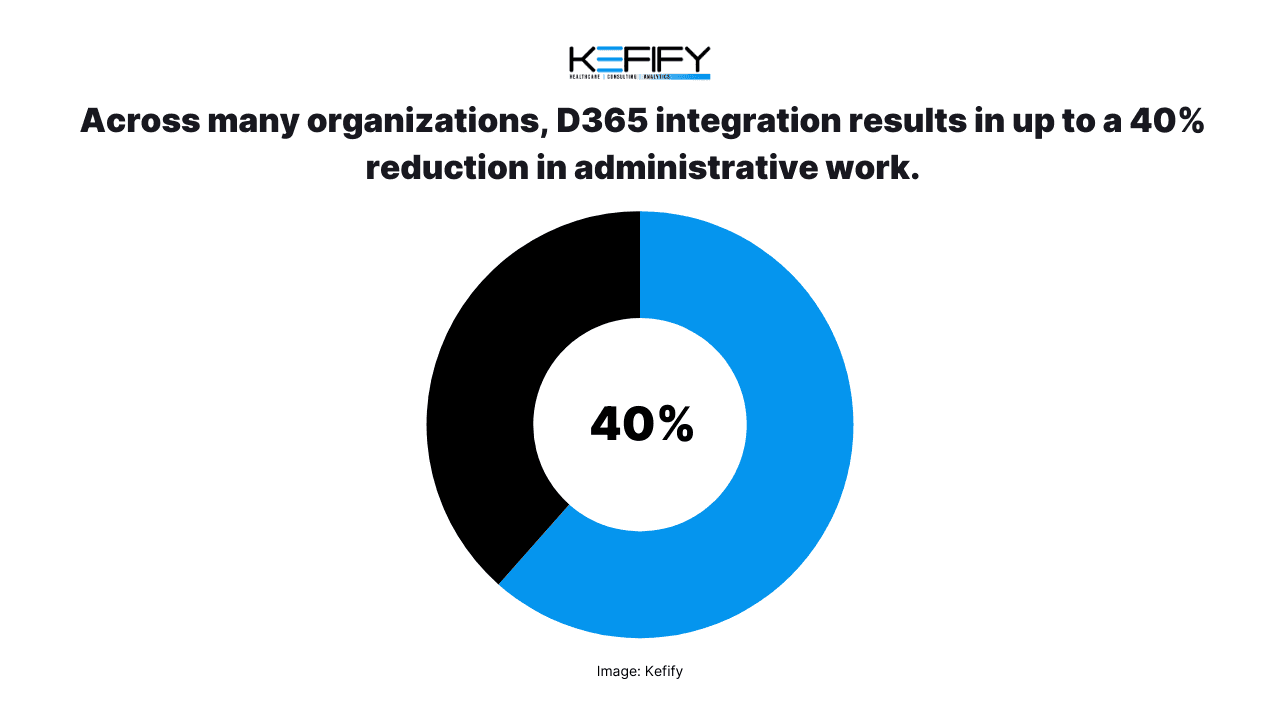
Across many organizations, this integration results in up to a 40% reduction in administrative work and up to 25% faster deal updates - simply by eliminating manual email logging.
That’s more than efficiency, it’s a productivity multiplier.
For UAE businesses with geographically dispersed teams, multi-entity structures, or complex sales cycles, consistent communication tracking can be a competitive advantage.
What the Dynamics 365 Outlook Integration Actually Does?
At its core, the integration brings CRM capabilities into your inbox. You don’t have to switch back and forth between Outlook and Dynamics 365 - the CRM comes to you.
Here’s how this works in practice:
1. Link Emails to CRM Records Automatically
Once configured, emails sent and received in Outlook can be linked to Dynamics 365 records like:
Leads
Contacts
Accounts
Opportunities
Cases or support tickets
This eliminates copy-paste work and ensures every customer interaction is searchable inside your CRM history.
2. Track Appointments and Tasks
Calendar meetings created in Outlook can be linked to CRM records - ensuring that engagement history stays complete, even if sales reps move meetings around or reschedule at the last minute.
3. Sync Contacts and Calendar Events
Contacts and meetings remain consistent between Outlook and Dynamics 365 — no more duplicate entries or outdated phone numbers.
4. Data at Your Fingertips
With the Dynamics 365 App for Outlook, users can view CRM information right inside the Outlook interface, including:
Past interactions
Notes and attachments
Open opportunities or unresolved support cases
This contextual access reduces guesswork and boosts responsiveness — especially in high-speed customer environments.
This is all enabled through server-side synchronization and the modern Dynamics 365 App for Outlook, which replaced older plugins and legacy tools.
Step-By-Step: Integrating Dynamics 365 With Outlook
Below is a practical, step-by-step process that reflects how most businesses — especially those partnering with implementation experts — approach this integration.
Step 1: Define What You Want to Sync
Before clicking any buttons, clarify your goals:
Do you want to track all emails related to certain customers?
Will you log meeting invitations automatically?
Do you want contacts synced both ways?
Documenting these preferences upfront helps avoid unnecessary clutter in your CRM later.
Step 2: Enable Server-Side Synchronization
Dynamics 365 relies on server-side synchronization to communicate with Microsoft Exchange (which powers Outlook). This is a backend setup that ensures emails, appointments, contacts, and tasks can flow securely and reliably between systems.
Without this, Outlook and Dynamics 365 can’t “see” each other well enough to sync data effectively. Server-side sync also means:
Sync happens automatically (no manual triggers)
Emails are correlated with CRM records based on sender/recipient
Outlook and CRM calendars stay aligned
Configuring this involves:
Going to the Dynamics 365 admin center
Setting the email processing option to “Server-Side Synchronization”
Testing and enabling mailboxes
This setup step is foundational.
Without it, the rest of the integration won’t function properly.
Step 3: Deploy the Dynamics 365 App for Outlook
Once server-side sync is configured, the next step is to make the Dynamics 365 App for Outlook available to users. Microsoft provides several deployment options:
Automatically add the app to all eligible users
Add the app to specific users
Let users install it themselves
Once deployed, users will see a Dynamics icon in their Outlook ribbon. From there, they can:
Track emails (“Set Regarding” to link to CRM records)
Create CRM records directly from an email (e.g., lead or opportunity)
View CRM data while composing or reading messages
This puts CRM power inside the email workflow — the place most sales and customer service work happens.
Real-World Benefits You’ll See After Integration
Now that the systems are technically connected, what actual improvements can businesses expect?
1. Reduce Manual Work and Human Error
Manual copying of emails and client details into CRM is one of the biggest drainers of productivity. Integration eliminates much of this work, saving teams hours each week — time that can be reinvested into revenue-generating tasks.
2. Get a Complete Customer View
When every touchpoint — email, appointment, note — is linked to the right CRM record, your teams are no longer operating blind. Sales reps know what support has been provided, service teams see deal context, and managers can forecast more accurately.
3. Improve Follow-Up and Conversion
Missed follow-ups are one of the top reasons deals stall or slip. When Dynamics 365 and Outlook are integrated, follow-up tasks and reminders can be created directly from the email interface — no switching tools or systems.
4. Enhance Internal Collaboration
When emails are logged consistently, team members across departments can see information they need without asking or duplicating effort. This translates to faster service responses and fewer internal bottlenecks.
The benefits go beyond convenience - they translate directly into improved performance across the sales lifecycle.
Common Challenges and How to Avoid Them
No integration project is completely frictionless, especially in larger organizations. Here are some common pitfalls — and how to navigate them:
1. Emails Not Syncing
This usually happens when:
Server-side sync isn’t fully enabled
Mailboxes aren’t properly approved or tested
There are permission issues with the user’s account
Solution: Systematically verify mailbox settings in Dynamics 365 and ensure mailboxes are approved and tested by admins.
2. Users Can’t See CRM Data in Outlook
This typically relates to:
Missing security roles
Deployment issues with the Outlook app
Solution: Check that each user has the correct Dynamics 365 security role that grants access to the Outlook integration feature.
3. Duplicate or Irrelevant Email Logging
If every email winds up in CRM (even unrelated ones), data quickly becomes cluttered.
Solution: Use selective tracking and folder-level rules so that only relevant emails are logged. This keeps CRM records clean and useful.
Why Outlook Integration Is a Must-Have?
Integrating Dynamics 365 with Outlook is far more than a technical configuration.
It bridges the gap between communication and customer intelligence, creating a workflow where your team spends less time managing systems and more time engaging customers.
For UAE businesses looking to streamline processes, increase responsiveness, and elevate internal collaboration - this integration isn’t optional. It’s a foundational step toward a more unified sales and customer experience.
Done well, it pays dividends in efficiency, data quality, and customer satisfaction.
And what better way to integrate Dynamics 365 into your business than to book a call with Kefify and let our experts handle it for you?
Kefify helps organizations across the UAE implement, customize, and support Microsoft Dynamics 365 ERP and CRM systems designed for scale, compliance, and long-term operational clarity. Our team brings over a decade of combined experience delivering Dynamics 365 solutions for growing and multi-entity businesses.
Jan 20, 2026